
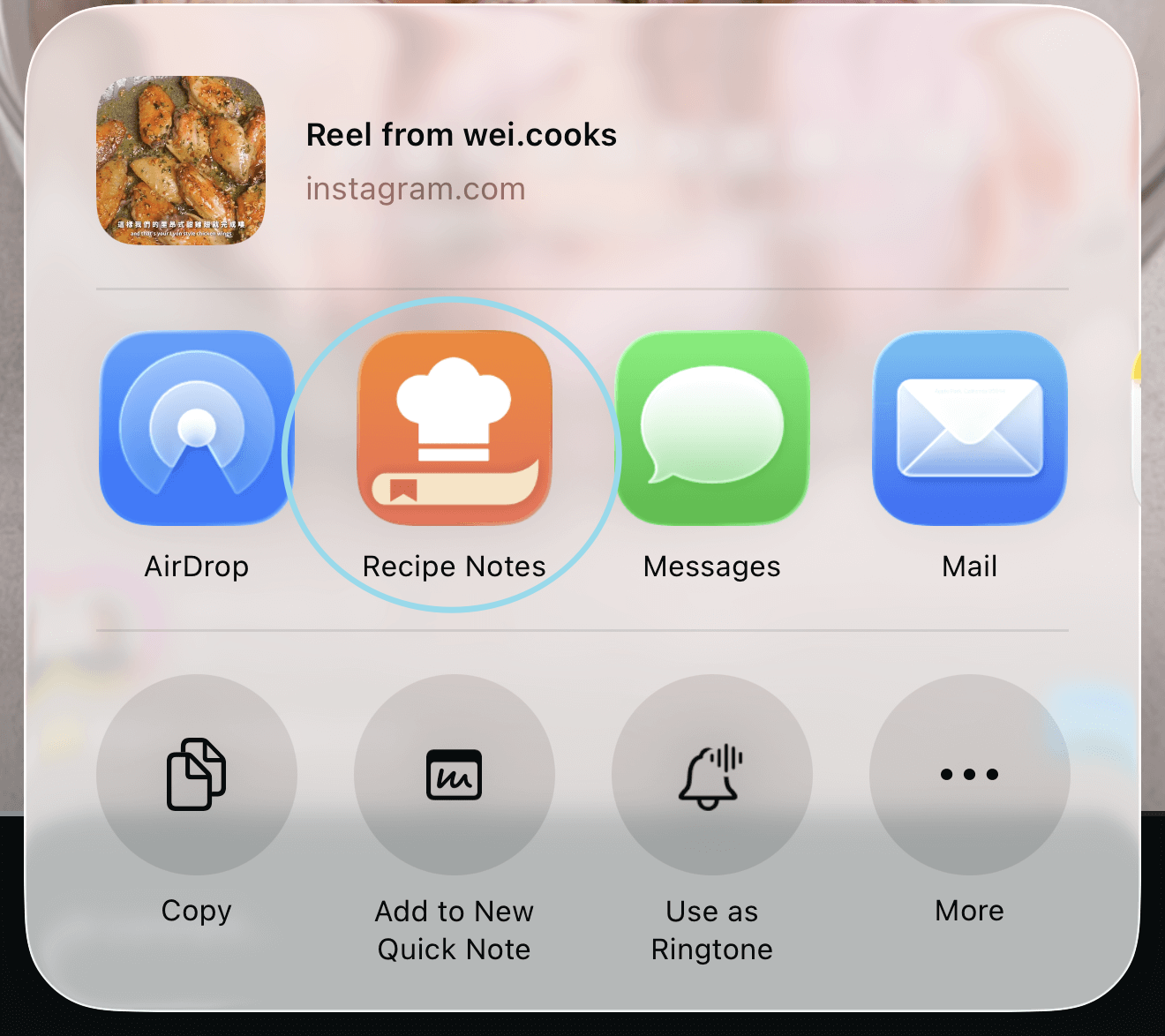
Recipe Notes imports recipes from the share sheet. When it is in your favorites, you can save a recipe from Safari, Instagram, TikTok, Pinterest, YouTube, or Facebook in two taps. You do not need to copy and paste a link. You only need to set this up once, and it works in every app that has a Share button.
Step 1: Open Any Share Sheet
Open any app, tap the Share button, and bring up the iOS share sheet.
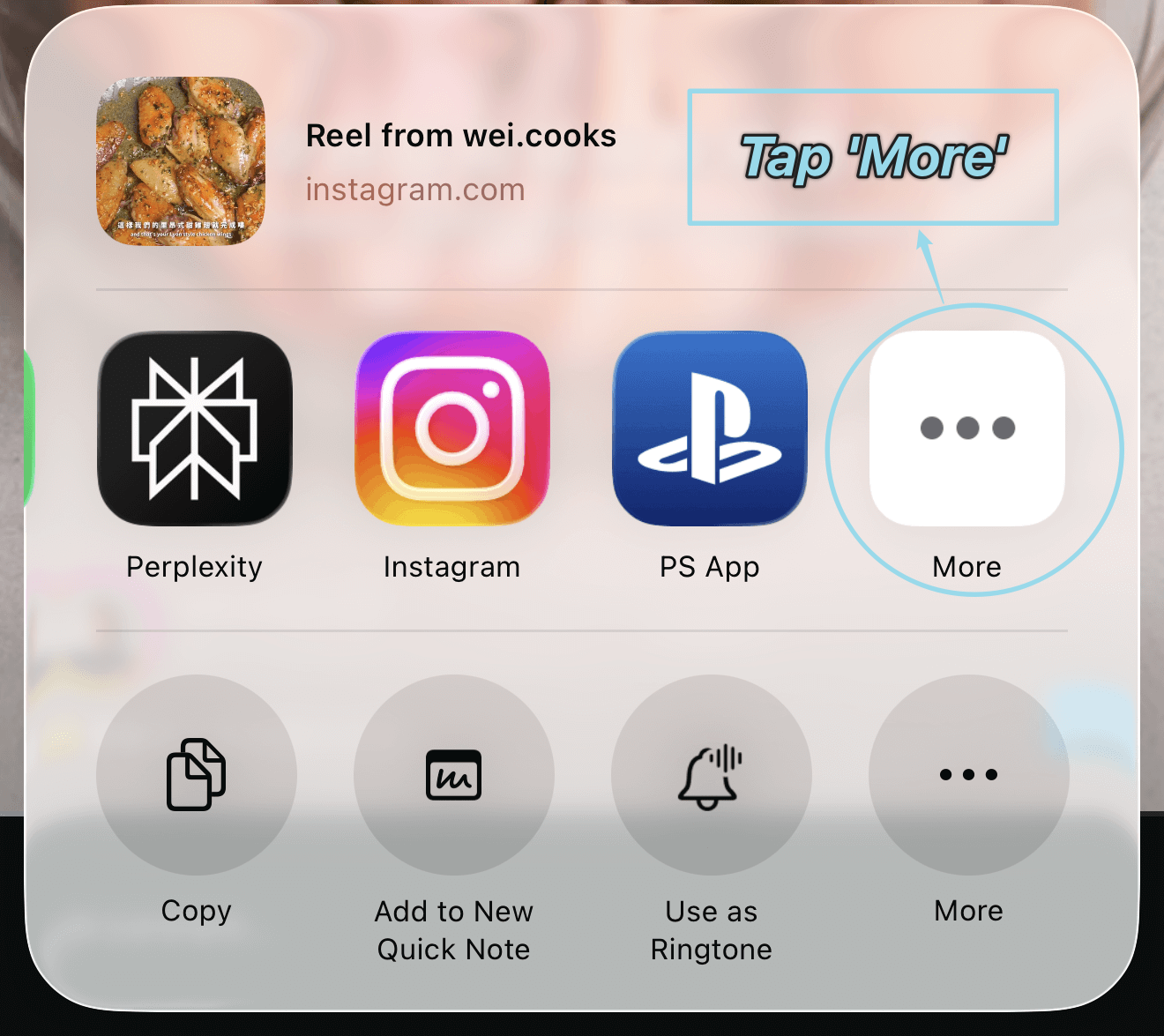
Step 2: Find More Options
Swipe to the end of the suggested apps and tap 'More' to see everything available.
Step 3: Edit Your Shortcuts
Tap 'Edit' so you can choose which apps appear in your favorites.
Step 4: Add Recipe Notes
Find Recipe Notes in the list and tap the '+' or toggle it on. If you don't see it, restart the app you're sharing from and try again.
Step 5: Organize and Save
Drag Recipe Notes to the top for quick access, then tap 'Done' to save your changes.
How to Use It
Next time you find a recipe, tap Share and then tap Recipe Notes in the first row of apps. Recipe Notes reads the page or the video caption and saves the recipe to your collection. You can keep browsing while the import finishes.
Troubleshooting
- Recipe Notes is not in the list. Open Recipe Notes once and sign in, then restart the app you are sharing from.
- The share sheet closes without saving. Make sure you are signed in to Recipe Notes, then try again.
For step-by-step guides for each app, see Import from Instagram, Import from TikTok, and Import from Pinterest.