
Supported Languages
Recipe Notes uses your device's language automatically. If your language isn't supported, English is used instead.
Recipe Notes currently supports these 13 languages:
- English (US)
- English (UK)
- Simplified Chinese 简体中文
- Traditional Chinese 繁體中文(香港)
- Japanese 日本語
- Korean 한국어
- German Deutsch
- French Français
- Spanish Español
- Italian Italiano
- Dutch Nederlands
- Portuguese (Brazil) Português
- Arabic العربية
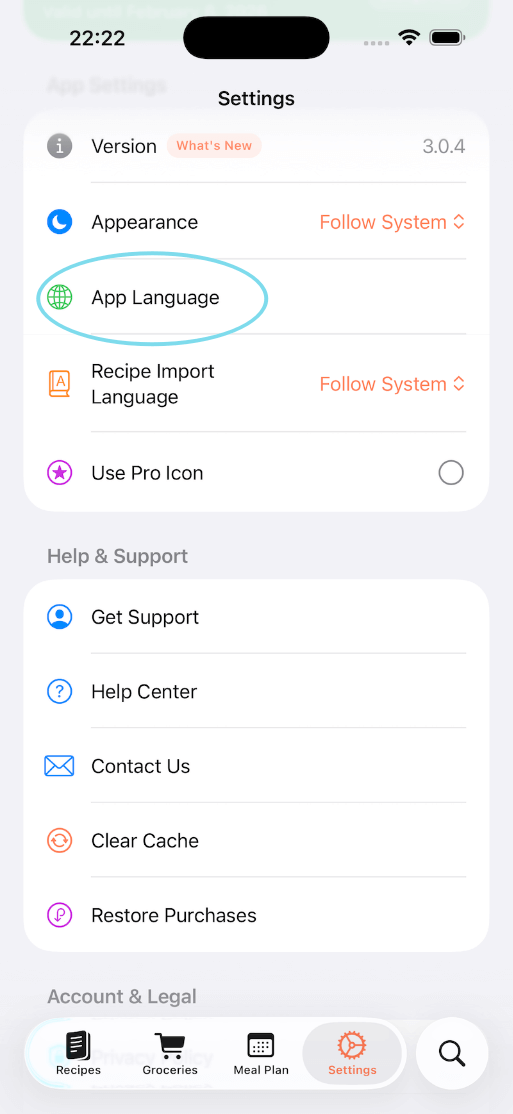
Step 1: Open Language Settings (iPhone and iPad)
In Recipe Notes, go to Settings and tap App Language.
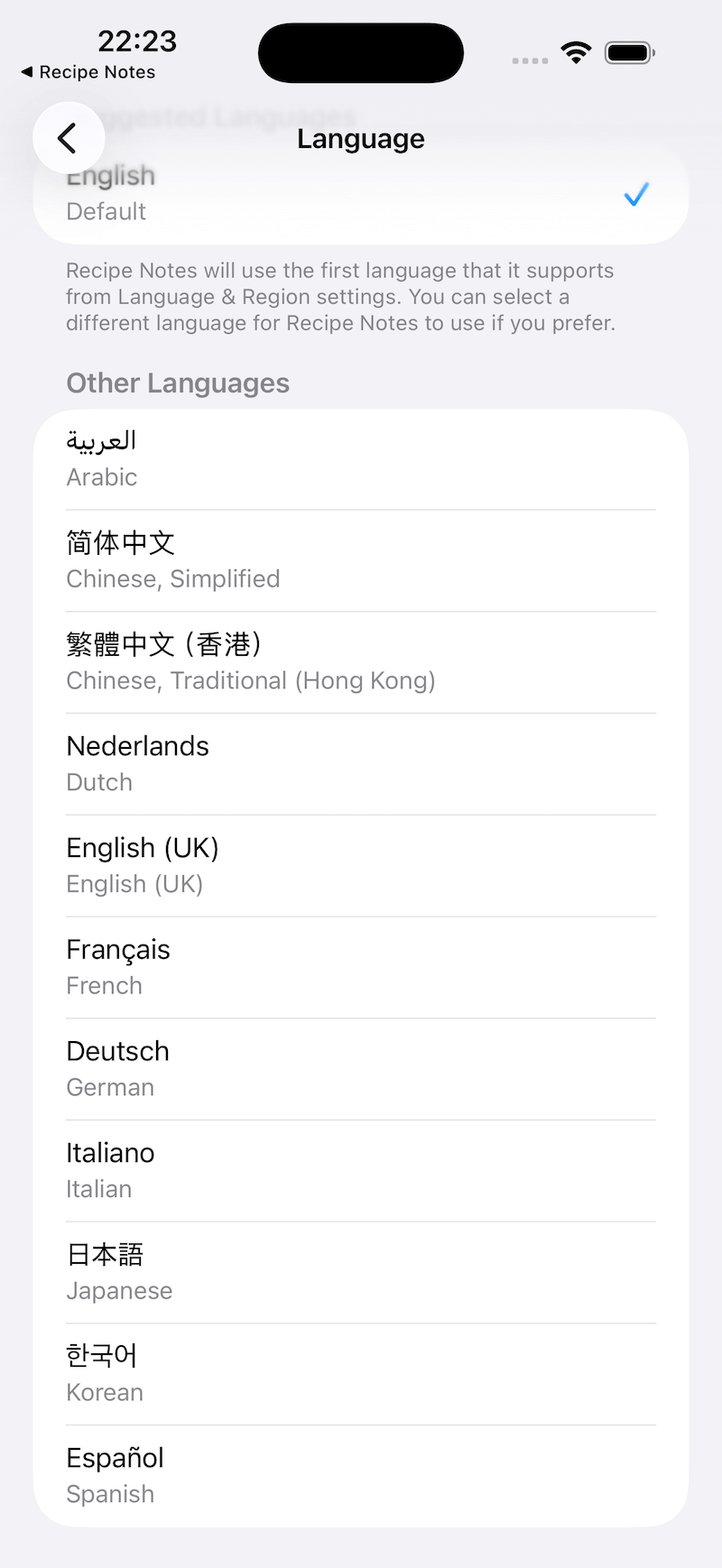
Step 2: Select Your Language
You'll be redirected to the iOS Settings app. Choose your preferred language from the list.
Troubleshooting: Language Option Not Showing on iPhone
If you don't see the "Language" option under Settings > Recipe Notes, follow these steps:
- Open the iOS Settings app.
- Go to General > Language & Region.
- Tap Add Language and add at least one additional language.
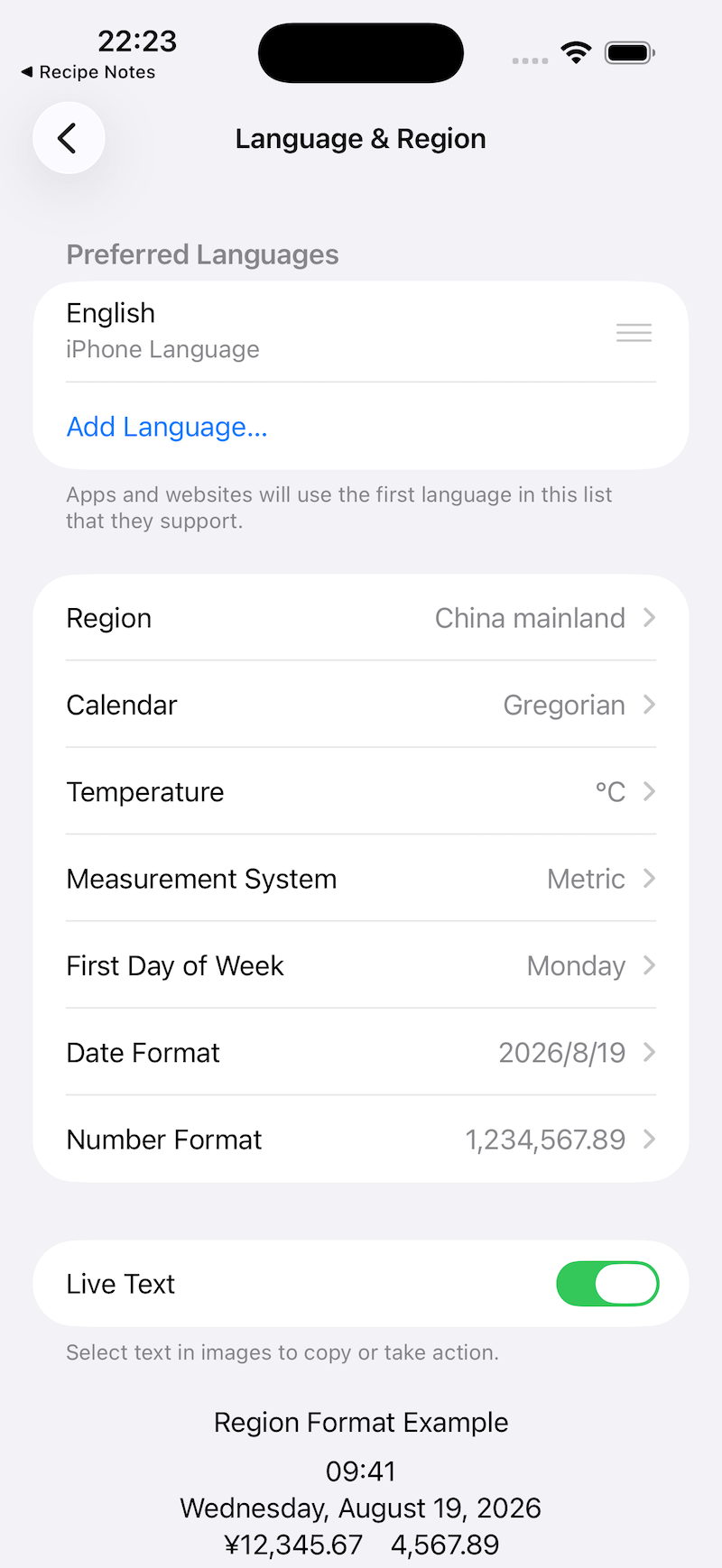
After adding a second language, go back and repeat the steps above. The language option should now appear.
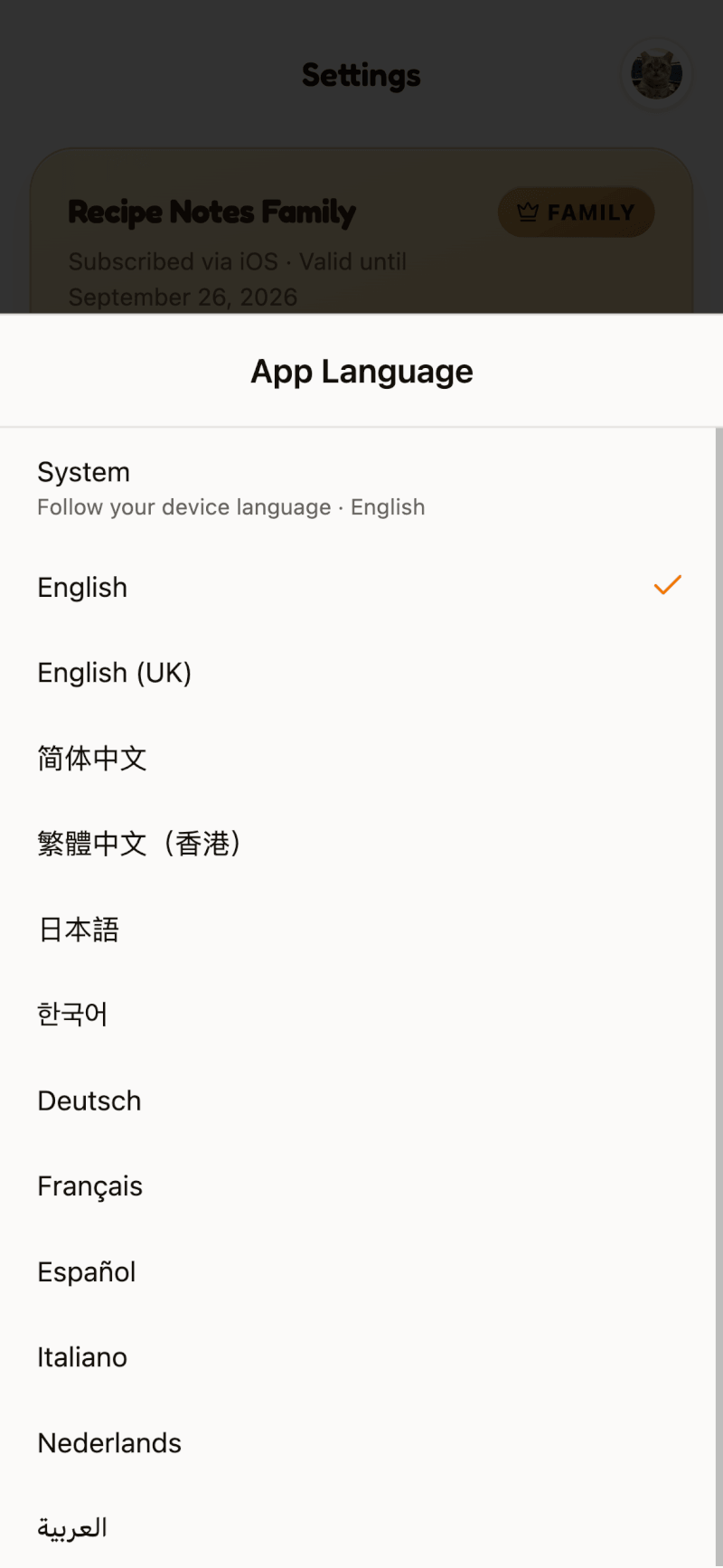
Change the Language on Android and the Web
On Android and at app.recipenotes.app, you can switch languages right inside the app. Go to Settings, tap App Language, and pick a language. Choose System to follow your device's language.
Recipe Language vs. App Language
The app language only changes buttons and menus. To choose the language used for newly imported recipes, go to Settings → Recipes & Planning → Import Preferences → Import Language.