
Recipe Notes can estimate calories, protein, carbs, and fat per serving for any recipe, based on its ingredients.
Nutrition analysis is a Pro feature. On the Free plan, recipes without nutrition data show a locked Unlock nutrition analysis card instead — see which plan is right for you. Nutrition that came with an imported recipe is always visible.
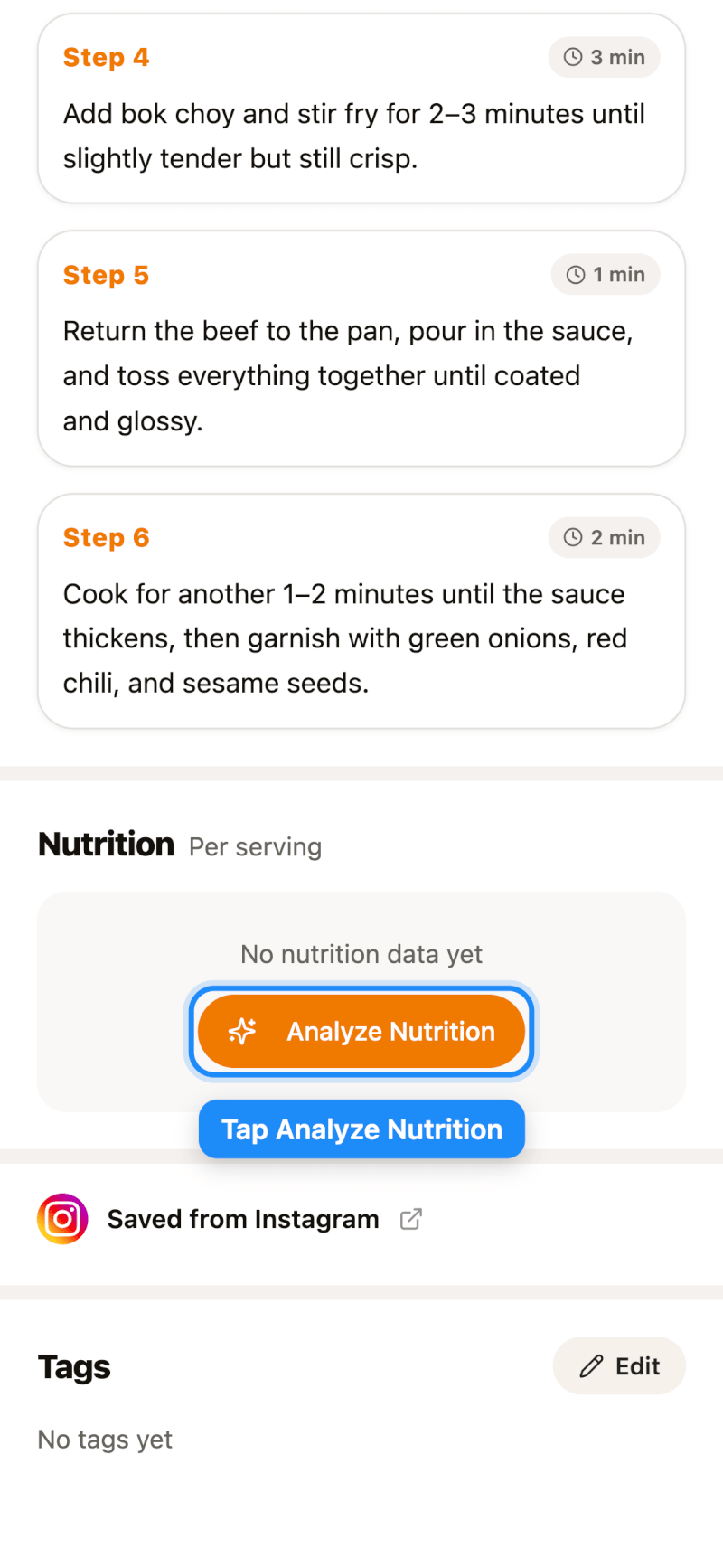
Step 1: Tap Analyze Nutrition
Open a recipe and scroll down to the Nutrition section. If the recipe doesn't have nutrition data yet, tap Analyze Nutrition.
Step 2: View Your Results
After a few seconds, you'll see calories, protein, carbs, and fat per serving.
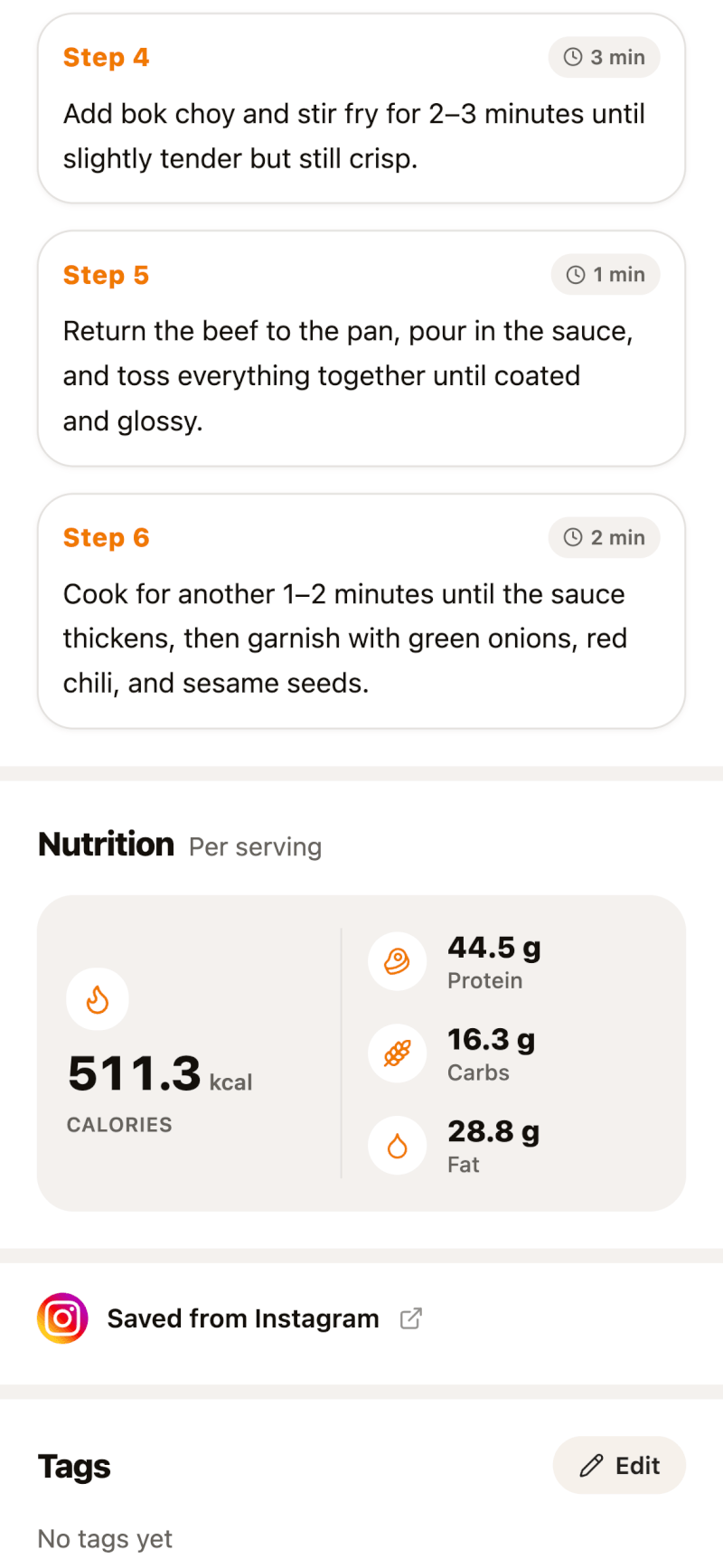
Nutrition is calculated per serving, based on the servings set for the recipe. You'll also see these numbers add up on the Meal Plan page.
Step 3: Recalculate After Editing
If you change a recipe's ingredients or servings, open the edit page (tap the pencil icon on the recipe), scroll to Nutrition, and tap Recalculate (Recalculate nutrition on iPhone and iPad). You can also type in your own values.
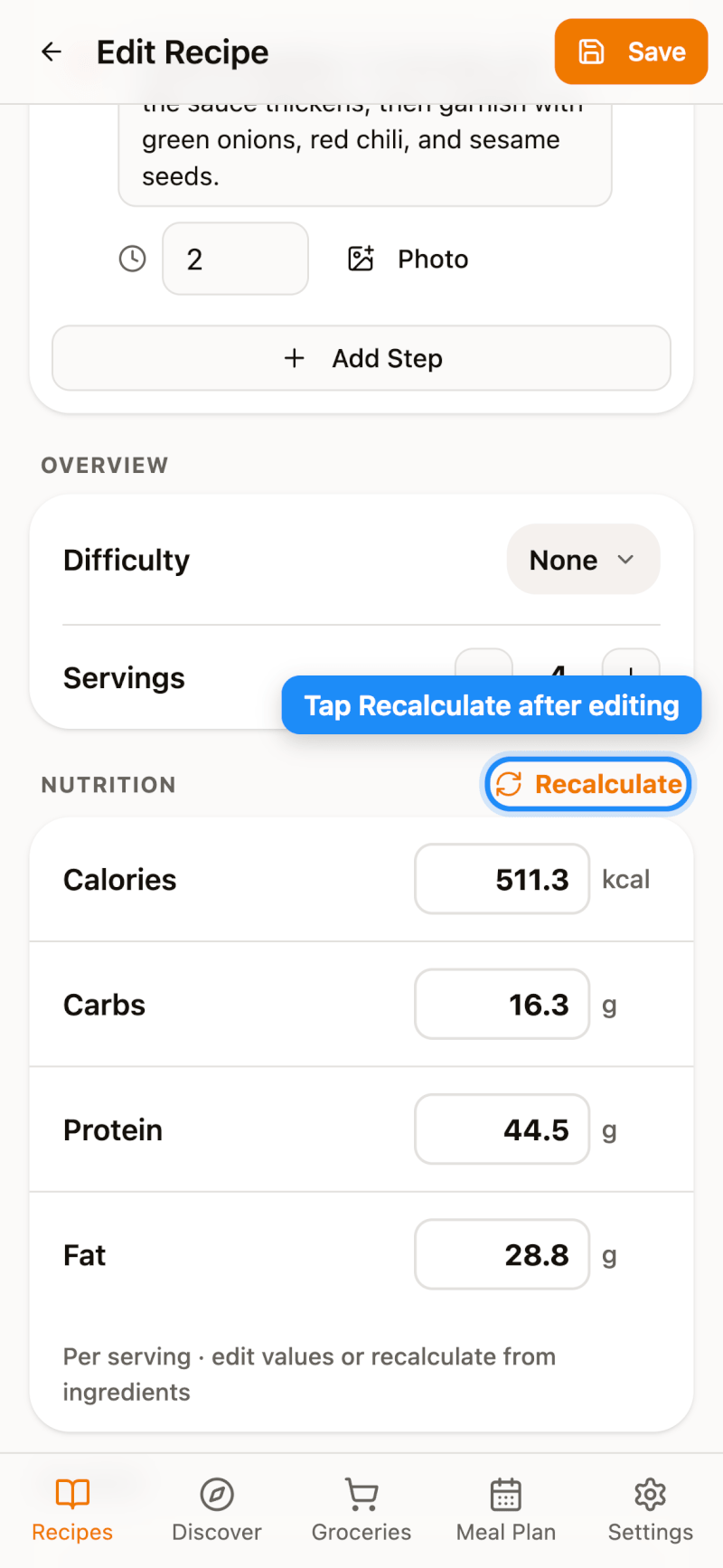
Don't forget to tap Save when you're done.
Nutrition values are estimates generated from the ingredient list and may differ from lab-tested values.