
When you add ingredients to Groceries in Recipe Notes, they're grouped by recipe. Smart Merge combines the same ingredient from different recipes into one line and sorts everything by store section, so you can shop in a single pass.
For example, if one recipe calls for 3½ cups of milk and another calls for 4 cups, Smart Merge combines them into one "Milk" entry and files it under Dairy.
How to Use Smart Merge
On the Groceries tab, tap Combine duplicate items at the top of your list.
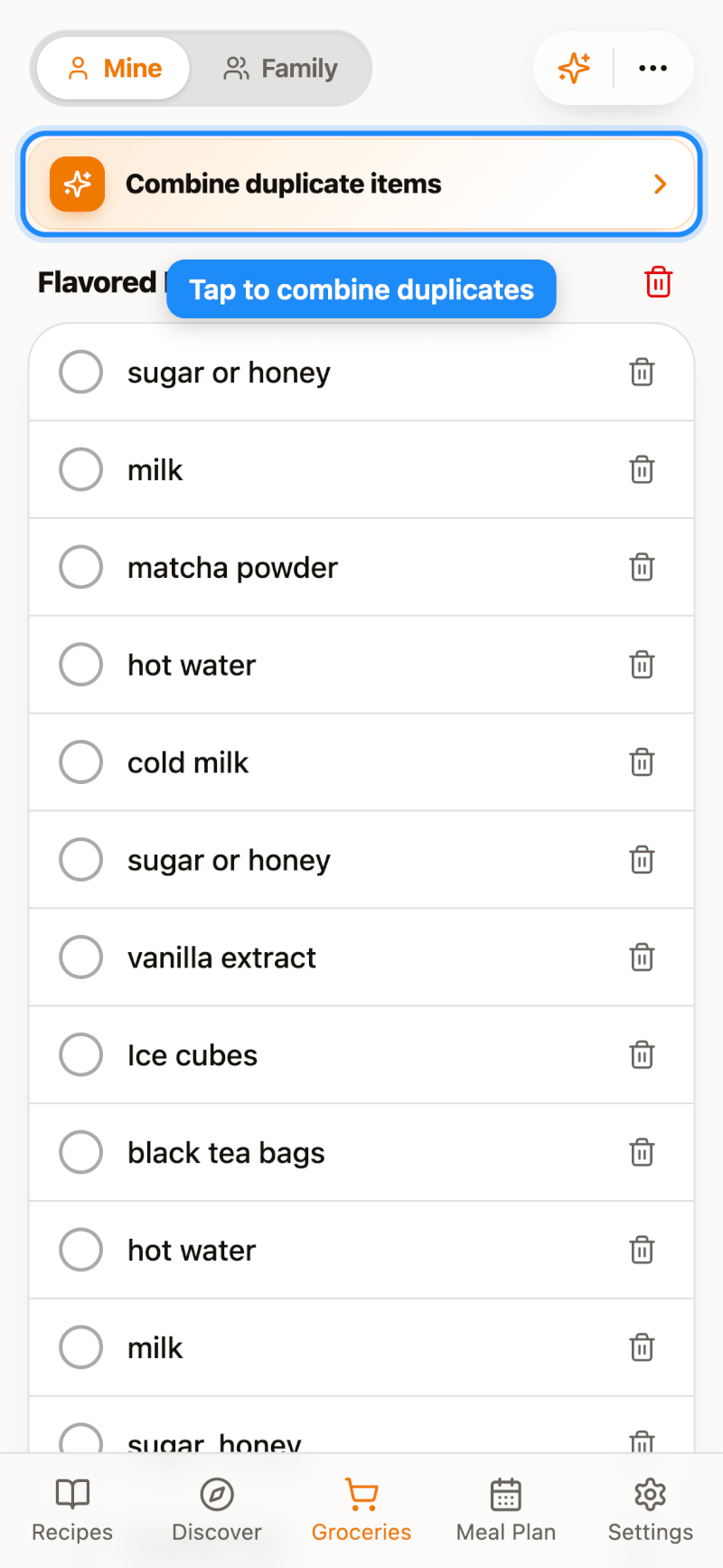
After a few seconds, your ingredients are merged and organized by category, like Dairy, Produce, and Pantry Staples:
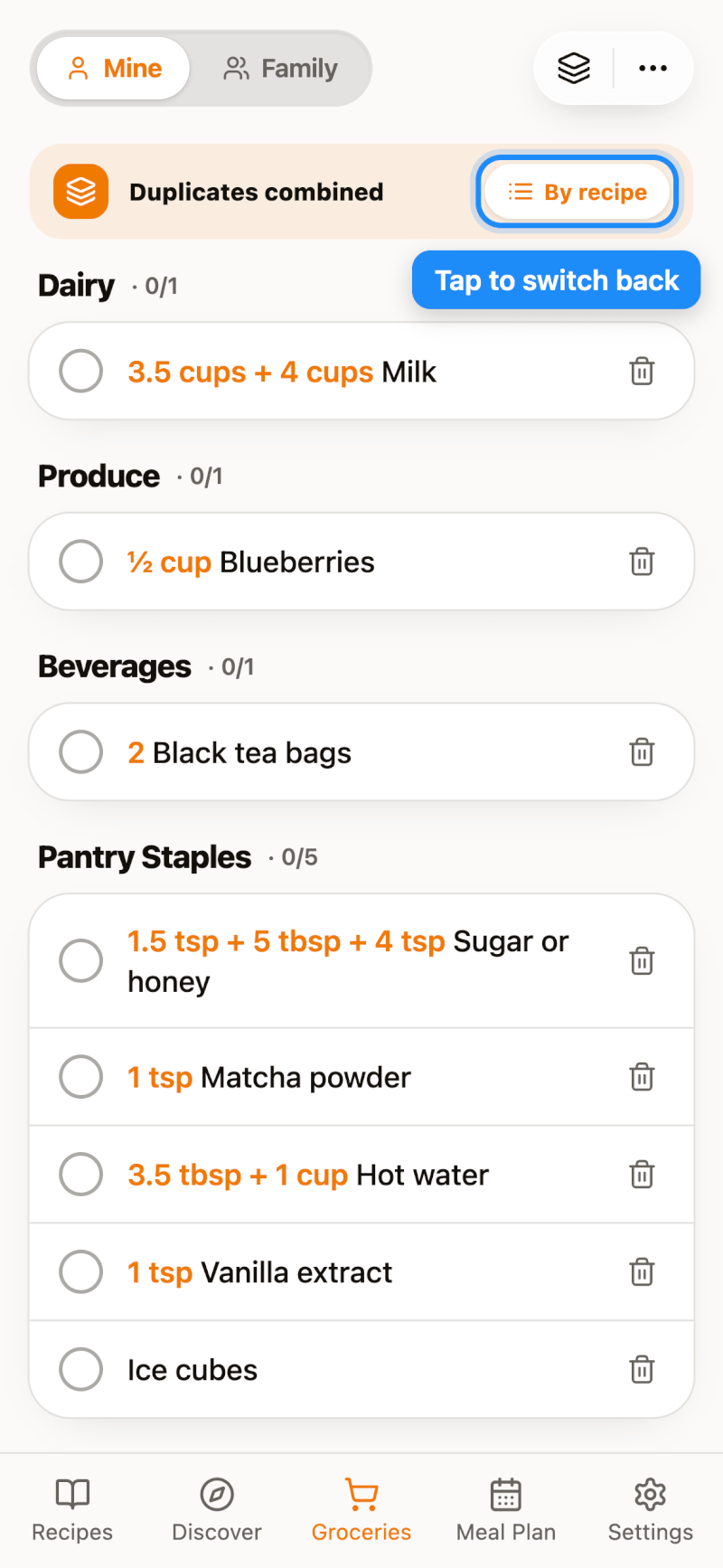
Switching Back
To return to the recipe-grouped list, tap By recipe in the Duplicates combined banner. Your original list is always kept — merging only changes how it's displayed.
Good to Know
- Items you check off stay checked when you switch between views.
- If you add new items after merging, tap Combine duplicate items again to include them in the merged view.
- The Free plan includes 10 Smart Merges a month; Pro makes Smart Merge unlimited. See which plan is right for you.