
With a Recipe Notes Family plan, up to 6 people (you plus 5 members) get Pro and can share recipes with each other — across iPhone, iPad, Android, and the web.
Step 1: Open Family Settings
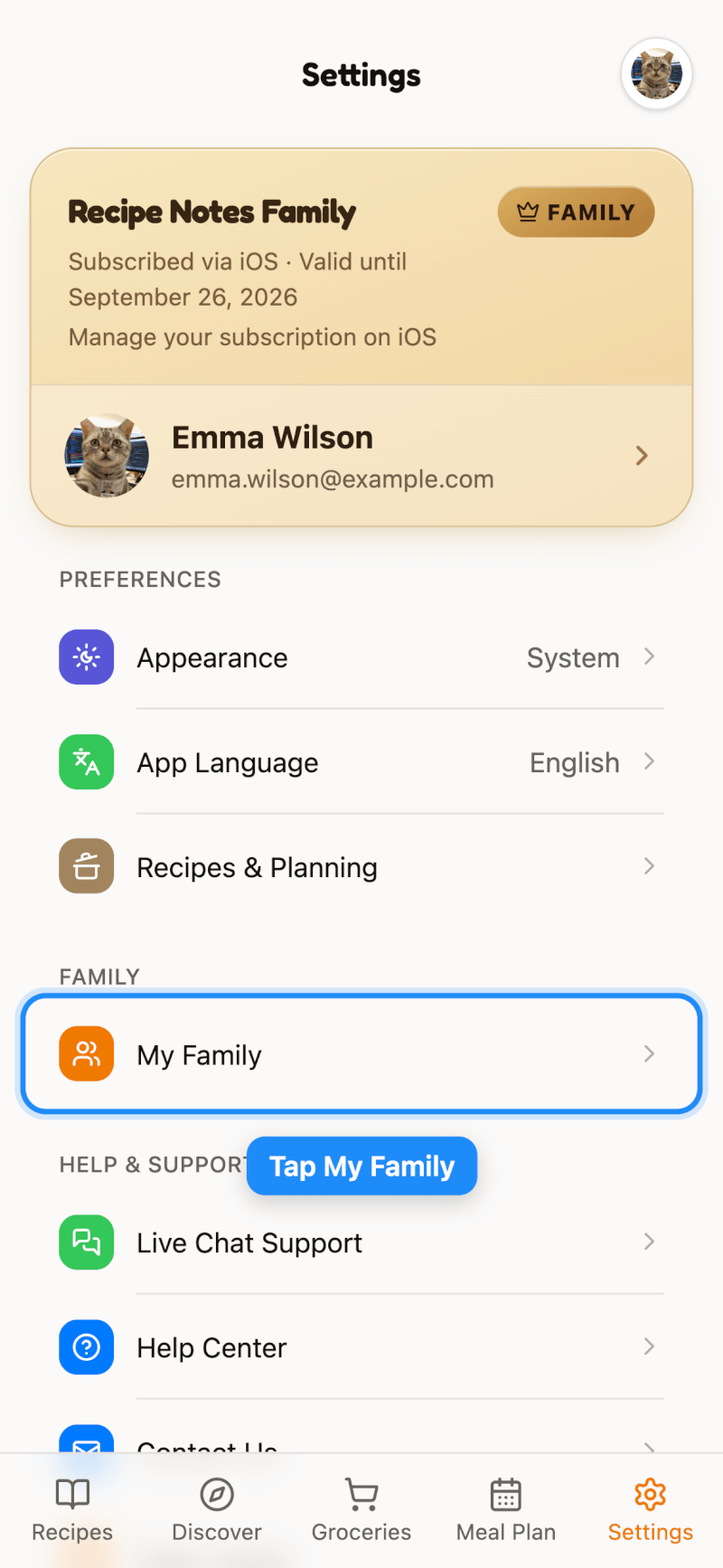
You'll need a Family plan to create a family. Then go to Settings and tap Family (My Family on the web).
Step 2: Invite Members
Tap Invite Member to create an invitation link, then send it to the people you want to invite. Once they accept, they appear in your members list.
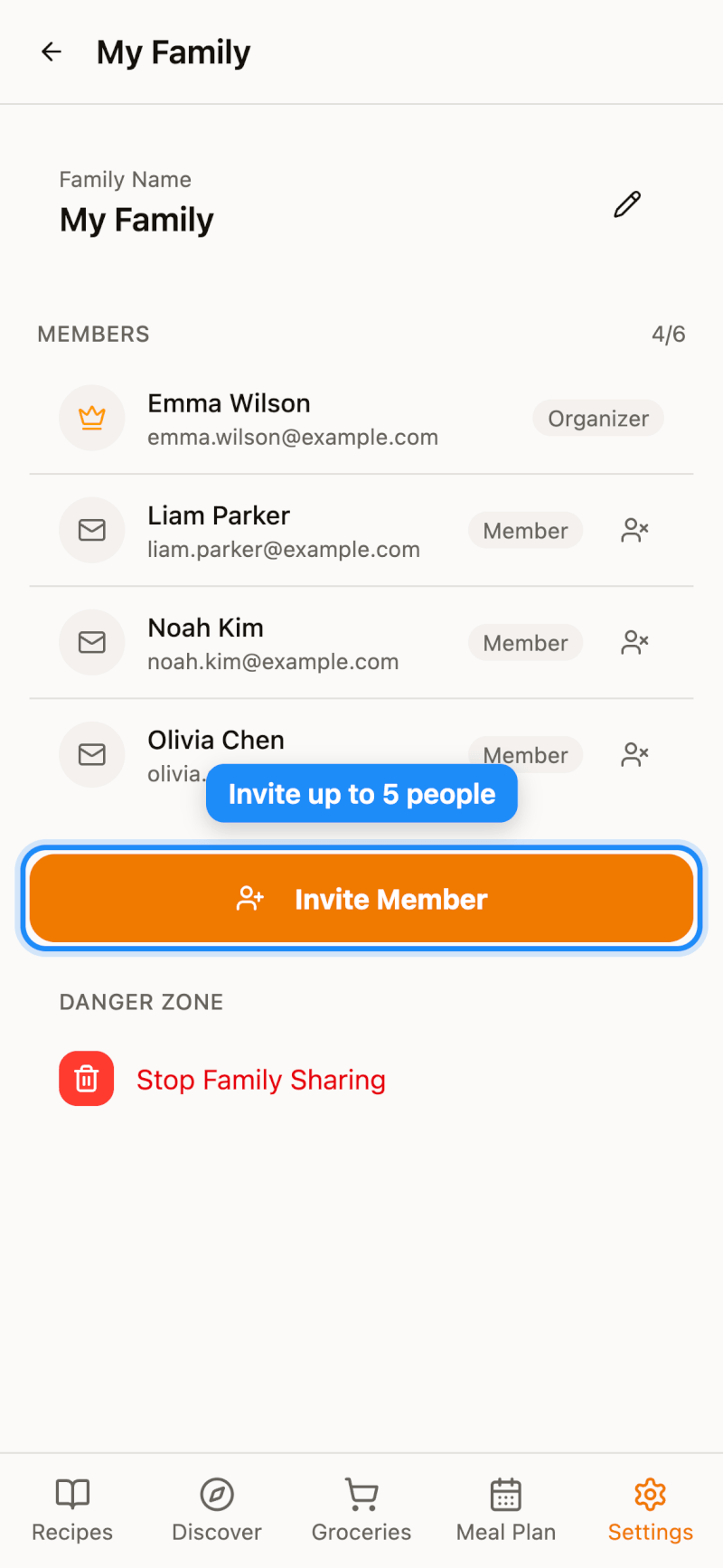
As the organizer, you can rename the family, remove members, or stop family sharing from this page.
Step 3: Share a Recipe with Your Family
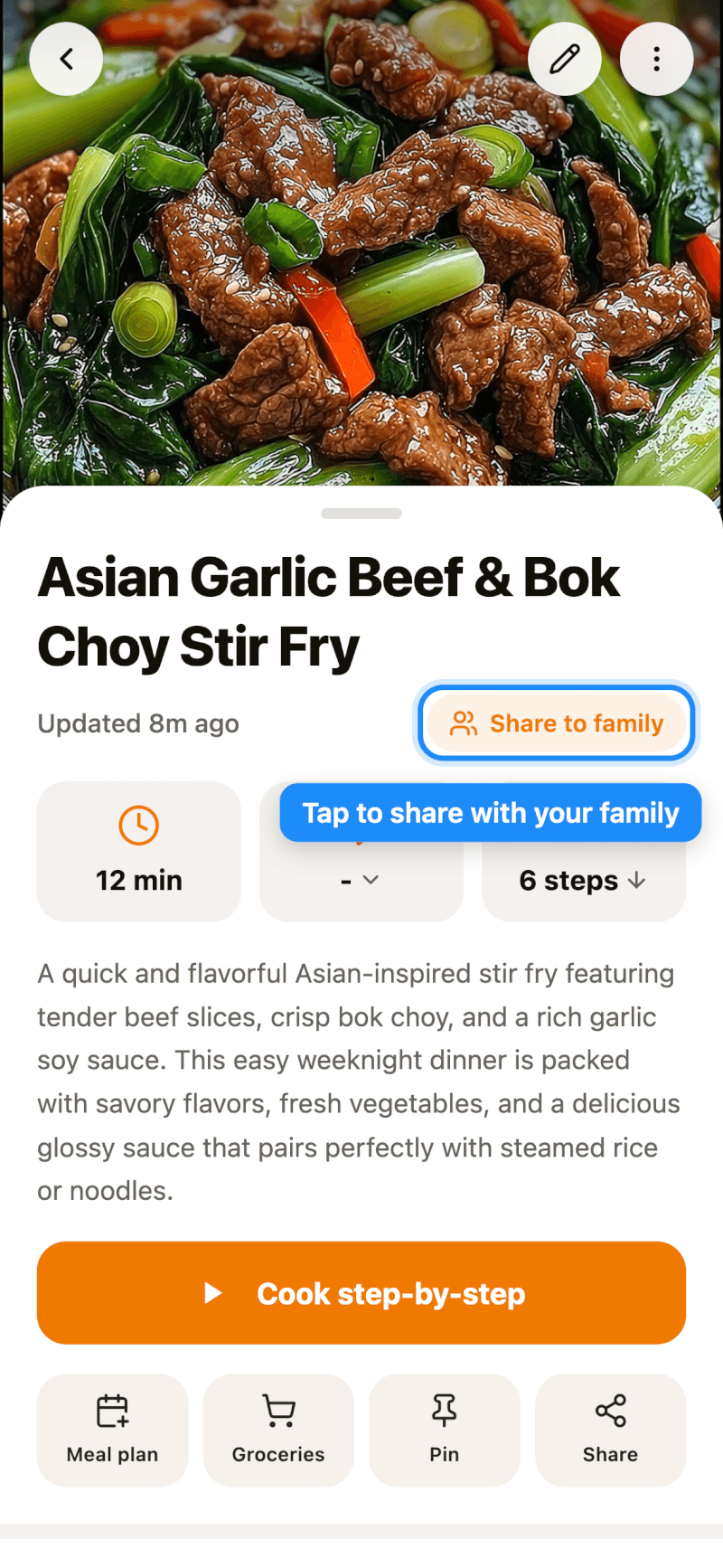
Open any recipe and tap Share to family below the title. Tap it again to stop sharing. On iPhone and iPad, you can also long-press a recipe in any list and choose Share with Family.
Step 4: Browse Your Family's Recipes
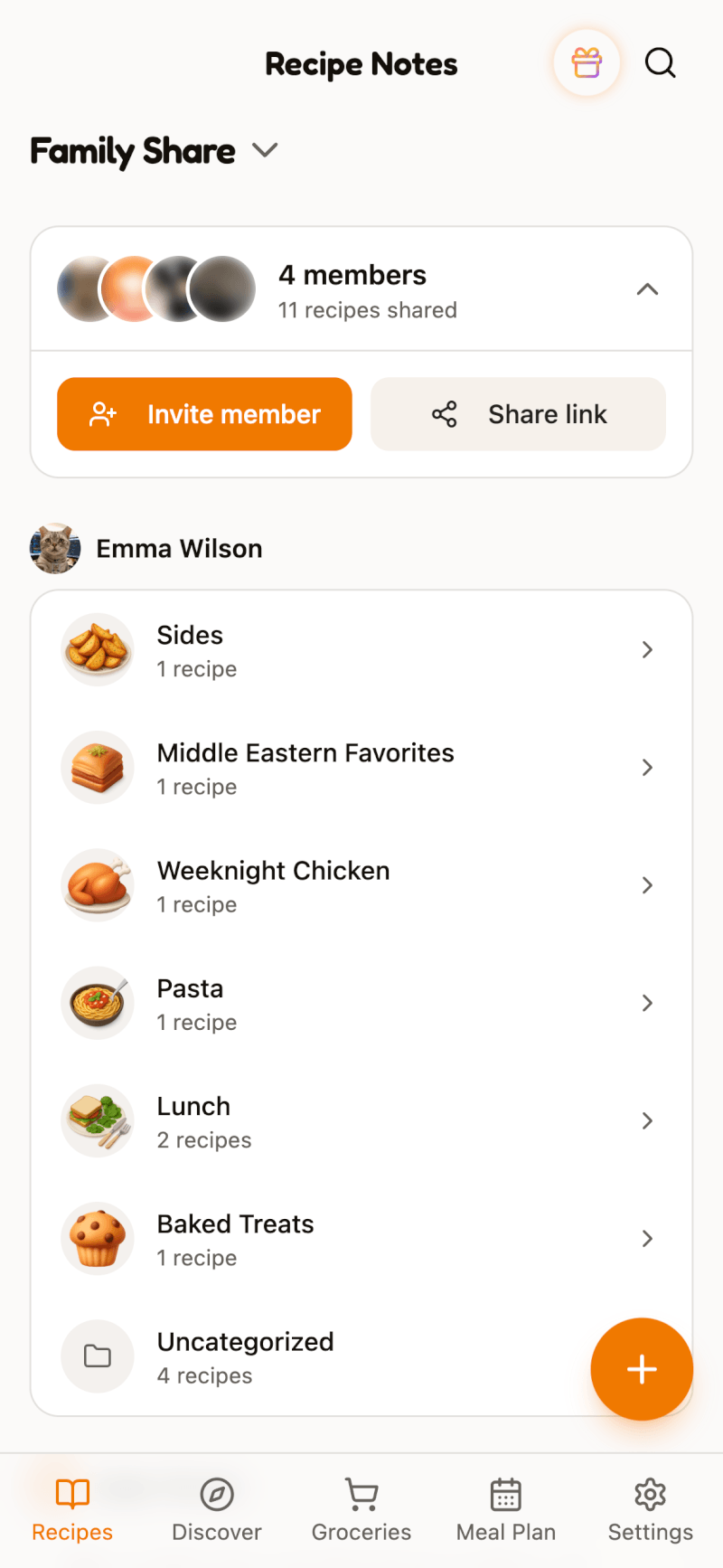
On the home screen, tap the view name at the top (for example, Cookbooks) and switch to Family Share.
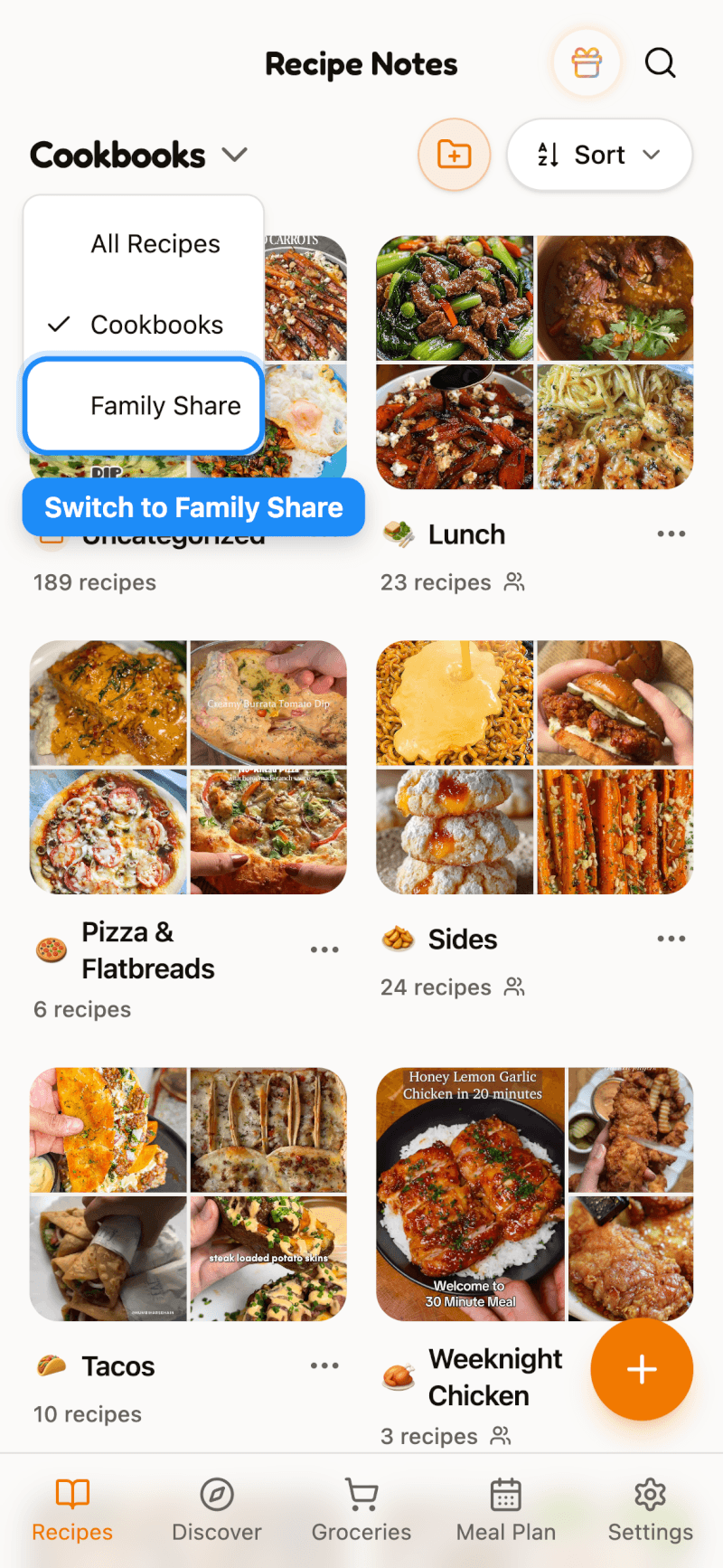
You'll see every member's shared recipes, organized by member and cookbook. From here, you can also invite new members or copy the invitation link.
More Ways to Plan Together
Family members also share a meal plan and grocery list. On the Meal Plan and Groceries tabs, switch from Mine to Family to see what the household is cooking and shopping for.
Not sure which plan to pick? See which Recipe Notes plan is right for you.