
Want a paper copy of your favorite recipe? Recipe Notes makes it easy to print any recipe right from the app. Here's how to do it in just a few taps.
1. Open the Recipe Detail Page
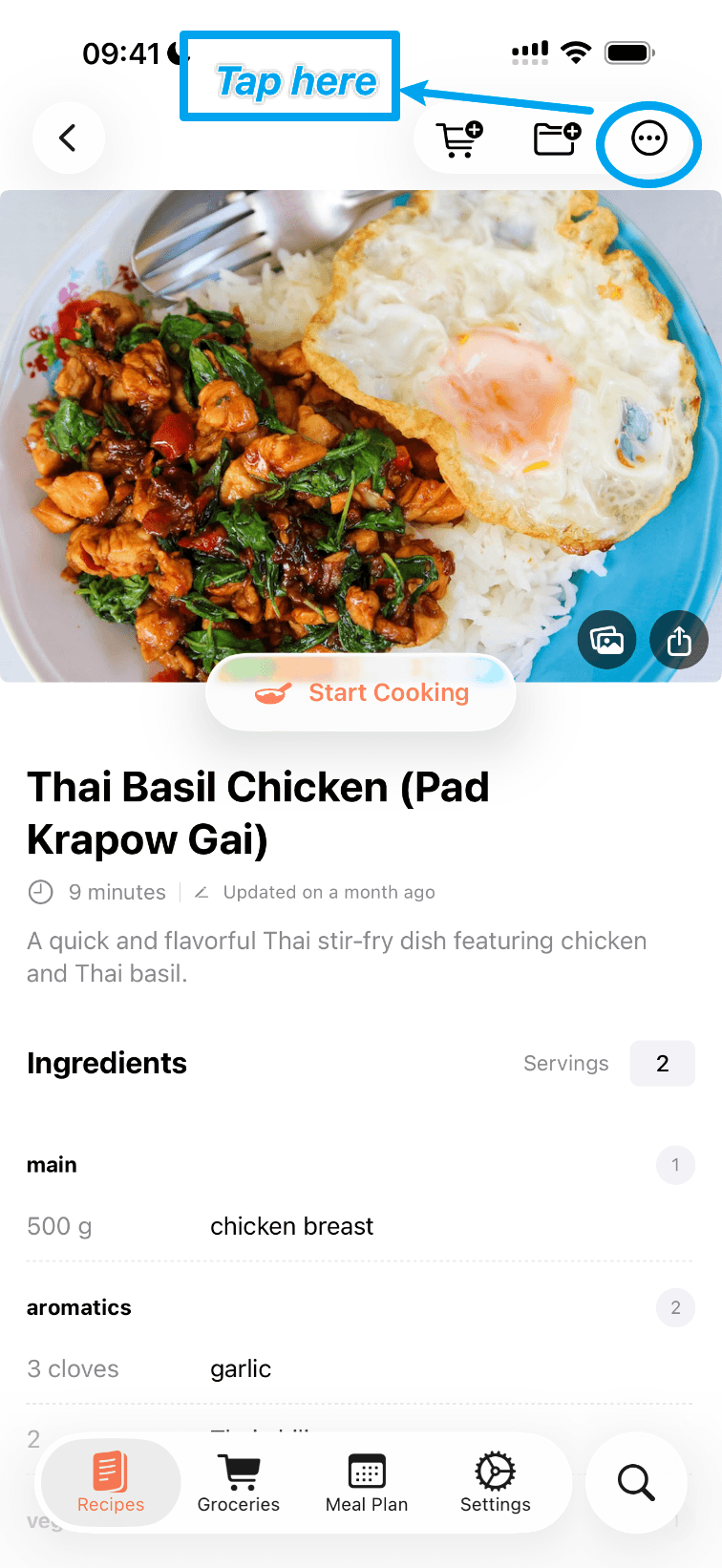
Tap the More button in the navigation bar.
2. Tap Print
Select Print from the menu options.
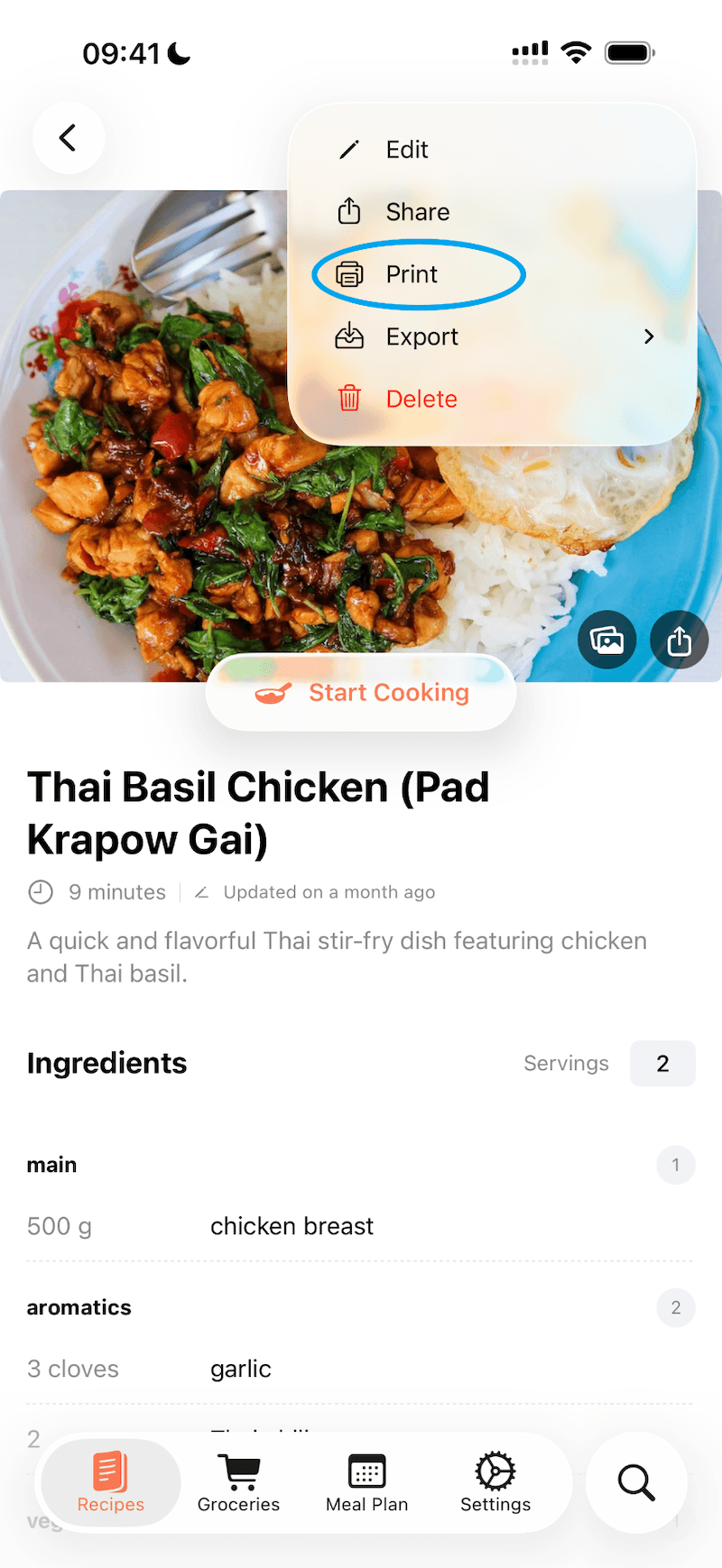
From there, you can customize your print settings as needed.
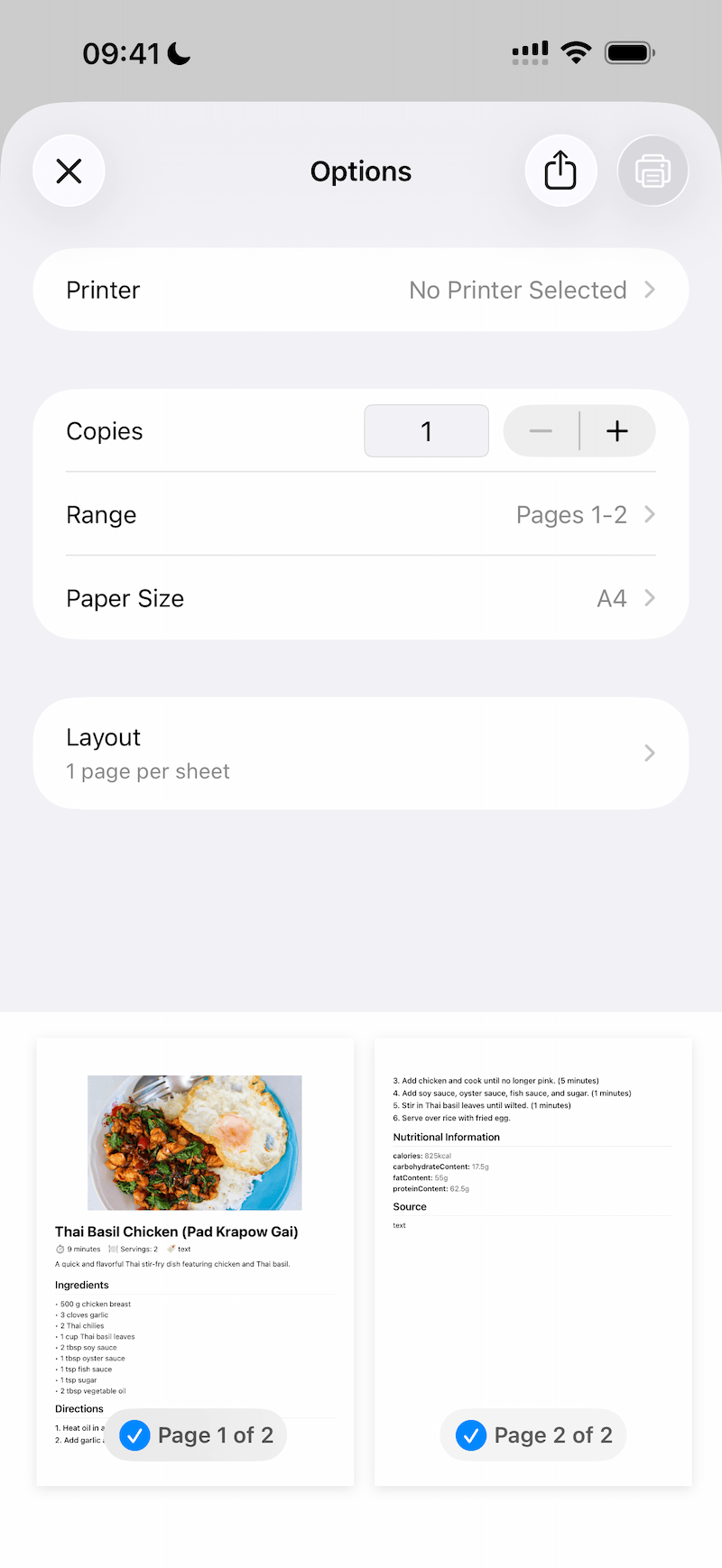
3. Choose Your Print Options
The standard iOS print screen opens. Choose an AirPrint printer, the number of copies, and the page range, then tap Print.
Save a Recipe as a PDF Instead
No printer nearby? On the print screen, tap the Share button at the top. You can then save the recipe as a PDF to the Files app, or send it by Messages or email.
Tips
- Edit the recipe before you print to remove steps you skip or to add your own notes. The printout uses the current version of the recipe.
- You can also print your meal plan and your grocery list, which is handy to stick on the fridge or take to the store.
- If your printer does not appear, check that it supports AirPrint and is on the same Wi-Fi network as your iPhone or iPad.